
Getting started with BrokerMule: set up your real estate CRM in 10 minutes
A ten-minute walkthrough from your first login to your first automated listing text: profile, branding, clients, invite link and plans.
Quick steps
- Complete your profileOpen Settings, upload a headshot, and add your name, brokerage, phone, email and a short bio. Click Complete setup.
- Pick your portal colorsChoose one of 18 portal palettes so your clients see your brand on their listings page.
- Add your first clientGo to Clients, click Add client, fill in their search, and tick “Activate this client for daily text alerts” if they agreed to texts.
- Share your invite linkClick Share invite link and send it to buyers so they can enter their own search.
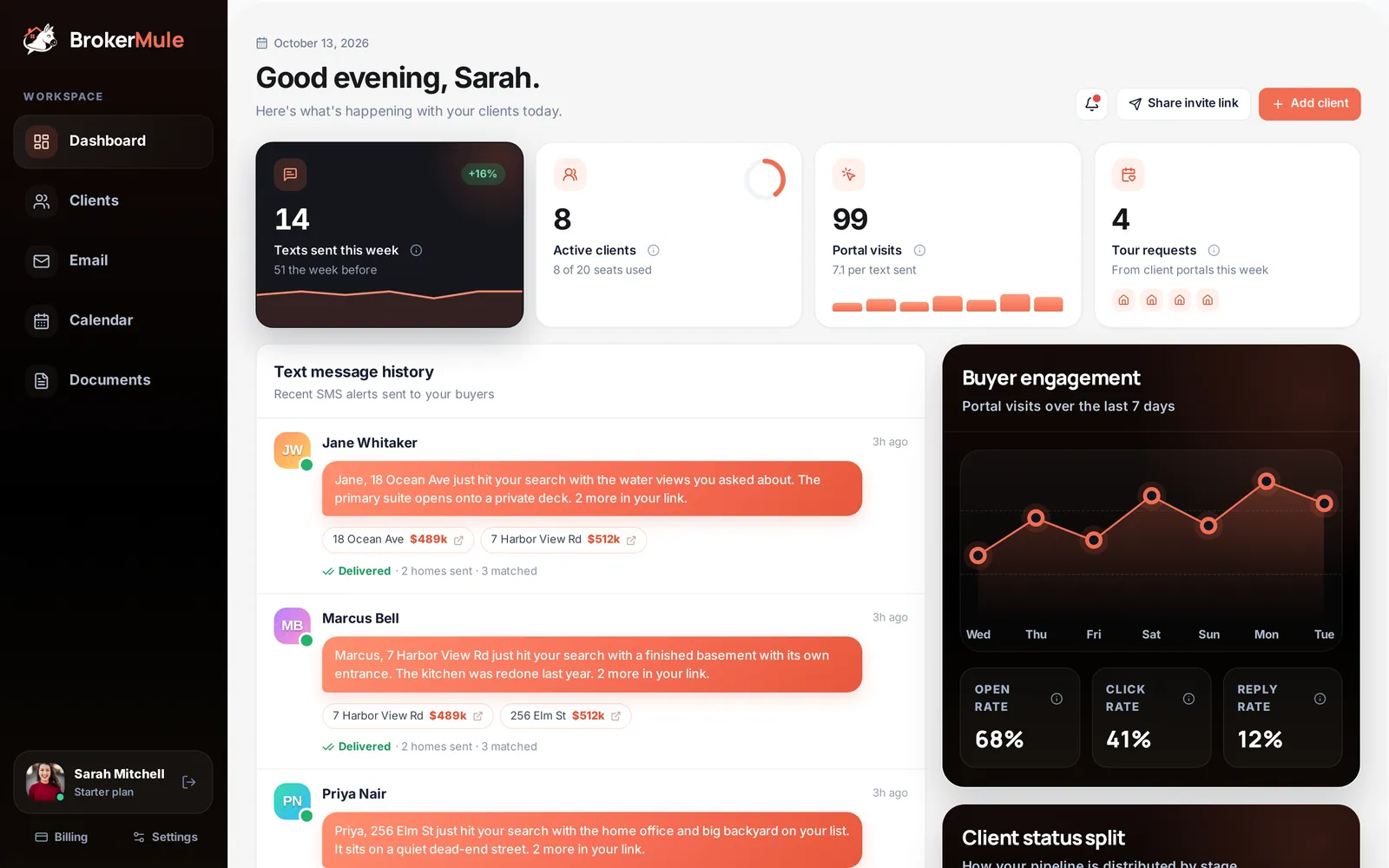
- Check your dashboard each morningReview texts, feedback and tour requests from the dashboard.
BrokerMule is a real estate CRM built around one idea: your buyers should hear about the right homes from you, the moment they hit the market, without you spending your mornings searching. You keep every client in one place for free, and when you're ready, BrokerMule texts your active buyers new listings that match their search, written by AI in your voice.
This guide gets you from your first login to your first automated text. Every step links to a deeper guide if you want the details.
1. Finish your profile and branding
The first time you sign in, BrokerMule opens Settings with a short welcome banner. Everything here appears on your clients' portal and on your invite page, so it's worth two minutes.
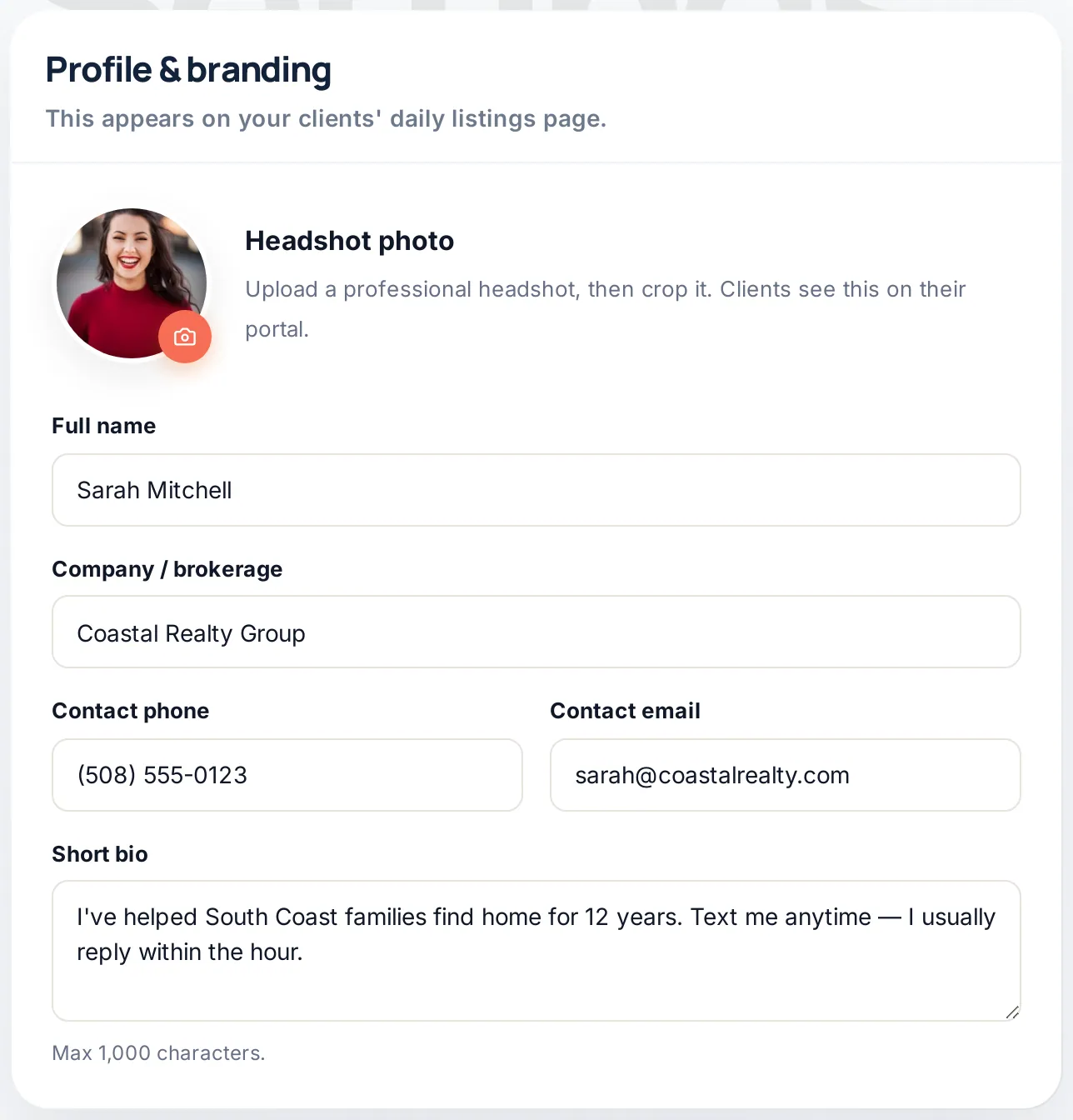
- Headshot photo – upload a photo, then crop it in the pop-up.
- Full name and Company / brokerage – this is how you're introduced in texts and on the portal.
- Contact phone and Contact email – used for the Call, Text and Email buttons buyers see.
- Short bio – a sentence or two about you (up to 1,000 characters).
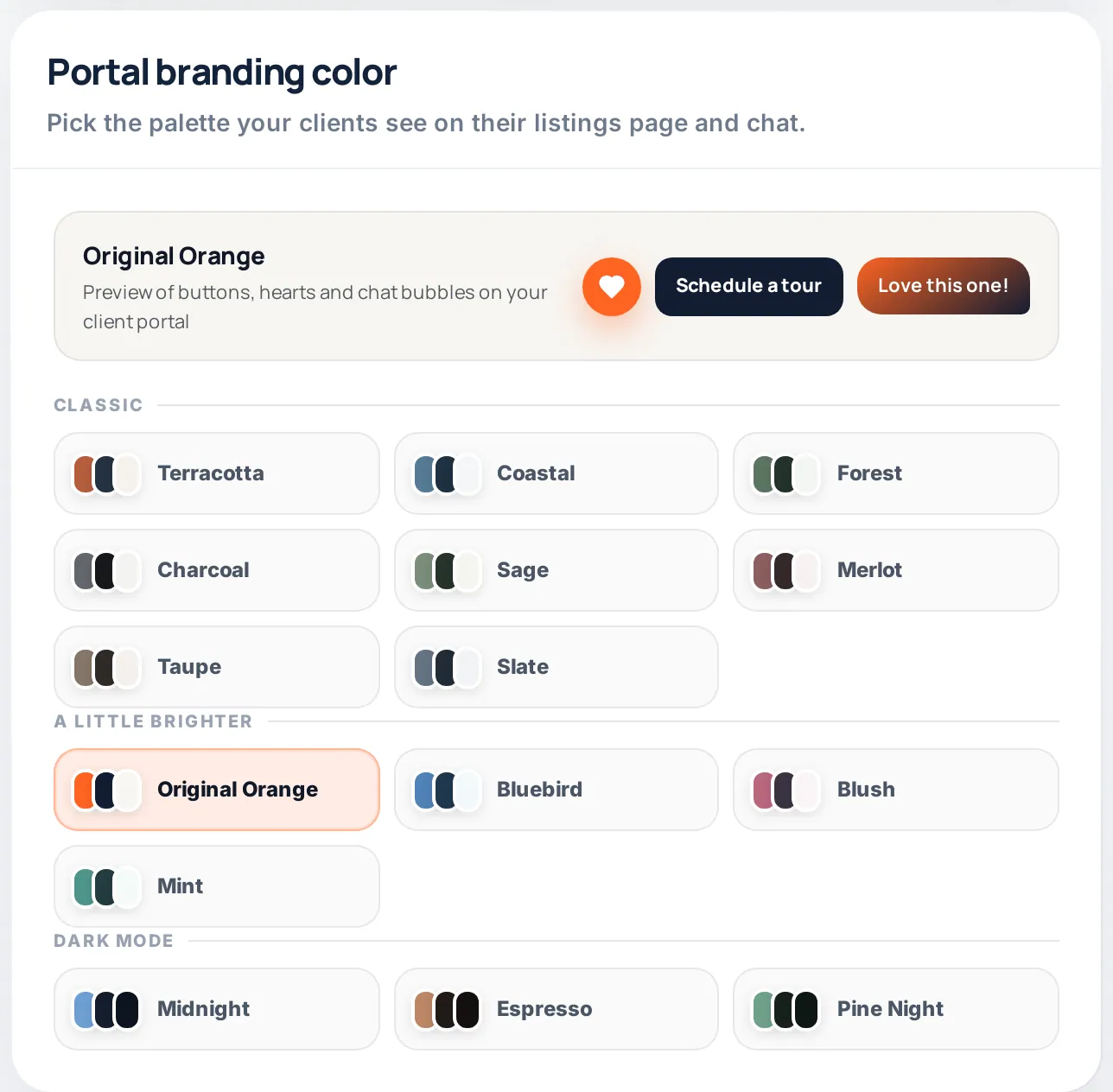
Then pick a portal branding color. There are 18 palettes in three groups (Classic, A little brighter and Dark mode), and the preview shows exactly how buttons, hearts and chat bubbles will look.
Click Complete setup (later it reads Save changes) and you'll land on your dashboard. See Settings and branding for every option.
2. Add your first client
Open Clients and click Add client. Enter their name and phone number, their search (ZIP code, radius, price range, beds, baths and property type) and a few sentences about what they want, like "fenced yard for two dogs, open to a fixer-upper." The AI uses those notes when it writes their texts.
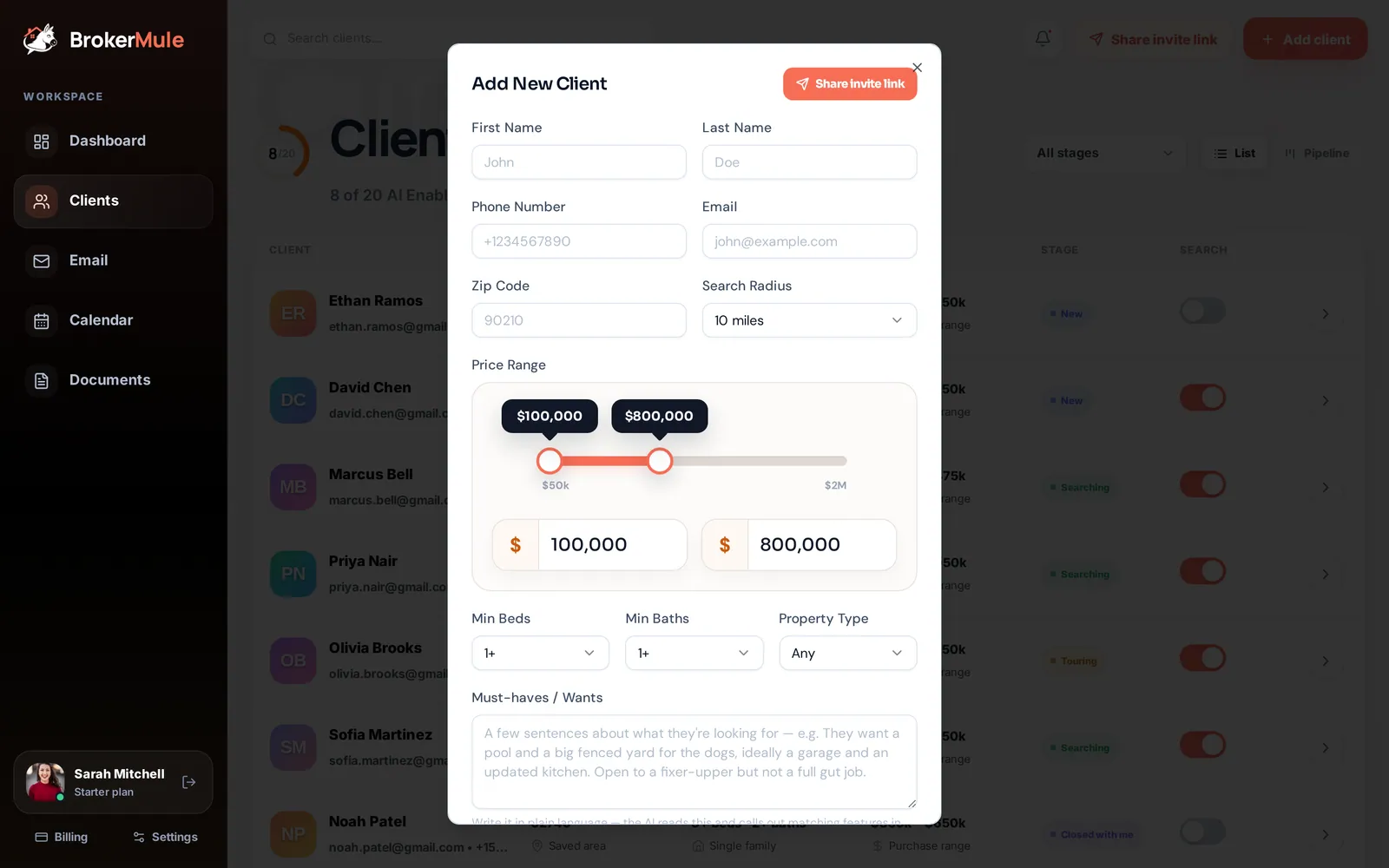
If the client has agreed to receive texts, tick Activate this client for daily text alerts, choose a delivery time and frequency, and confirm their consent. If not, leave it unchecked. They're saved as a regular CRM contact, which is always free and unlimited. Full details are in Adding clients and activating texts.
3. Share your invite link
The fastest way to add buyers is to let them do it. Click Share invite link on the dashboard (or the paper-plane icon on your phone) and copy your personal link. Buyers open it, enter their own search and agree to texts. You get a notification and decide when to activate them.
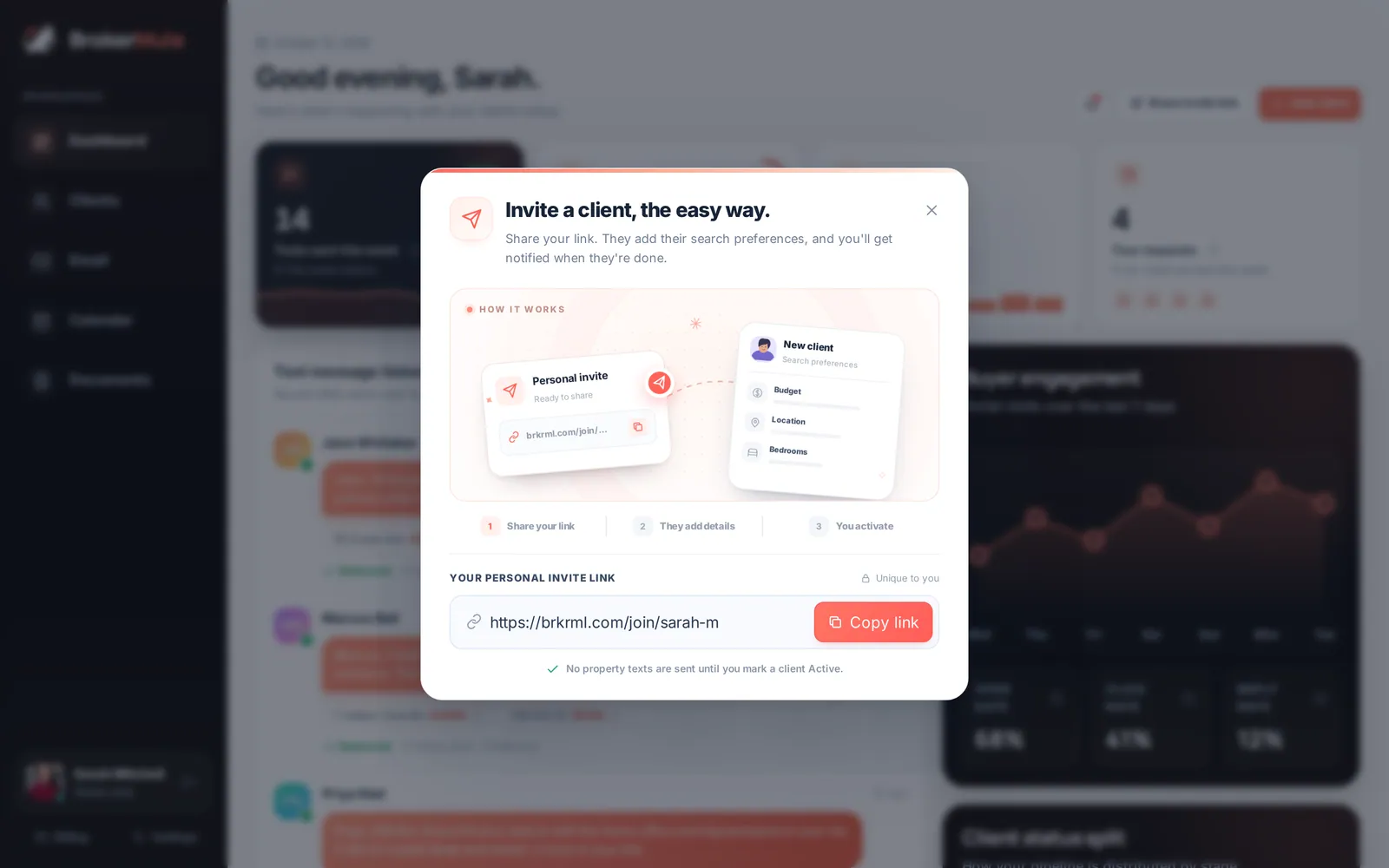
Learn more in Your invite link and client self sign-up.
4. Know what happens next
Once a client is active, here's what a normal day looks like:
- On weekdays at the time you chose (Eastern Time), BrokerMule searches for new listings that match the client's criteria.
- If there are new homes they haven't seen, the AI writes one short, personal text featuring the best match and links to their portal, which shows up to three new homes each time.
- If nothing new matched, no text is sent that day. Buyers never get filler.
- Your client can reply SAVE or TOUR, tap homes on their portal, leave feedback or message you in chat. All of it lands on your dashboard and their client page.
How AI listing texts work explains the whole flow, including opt-outs and reply keywords.
5. Make the dashboard your morning routine
Your dashboard shows texts sent this week, active clients, portal visits and tour requests, followed by text history, client feedback, tour requests and who needs a follow-up.
Where to go from here
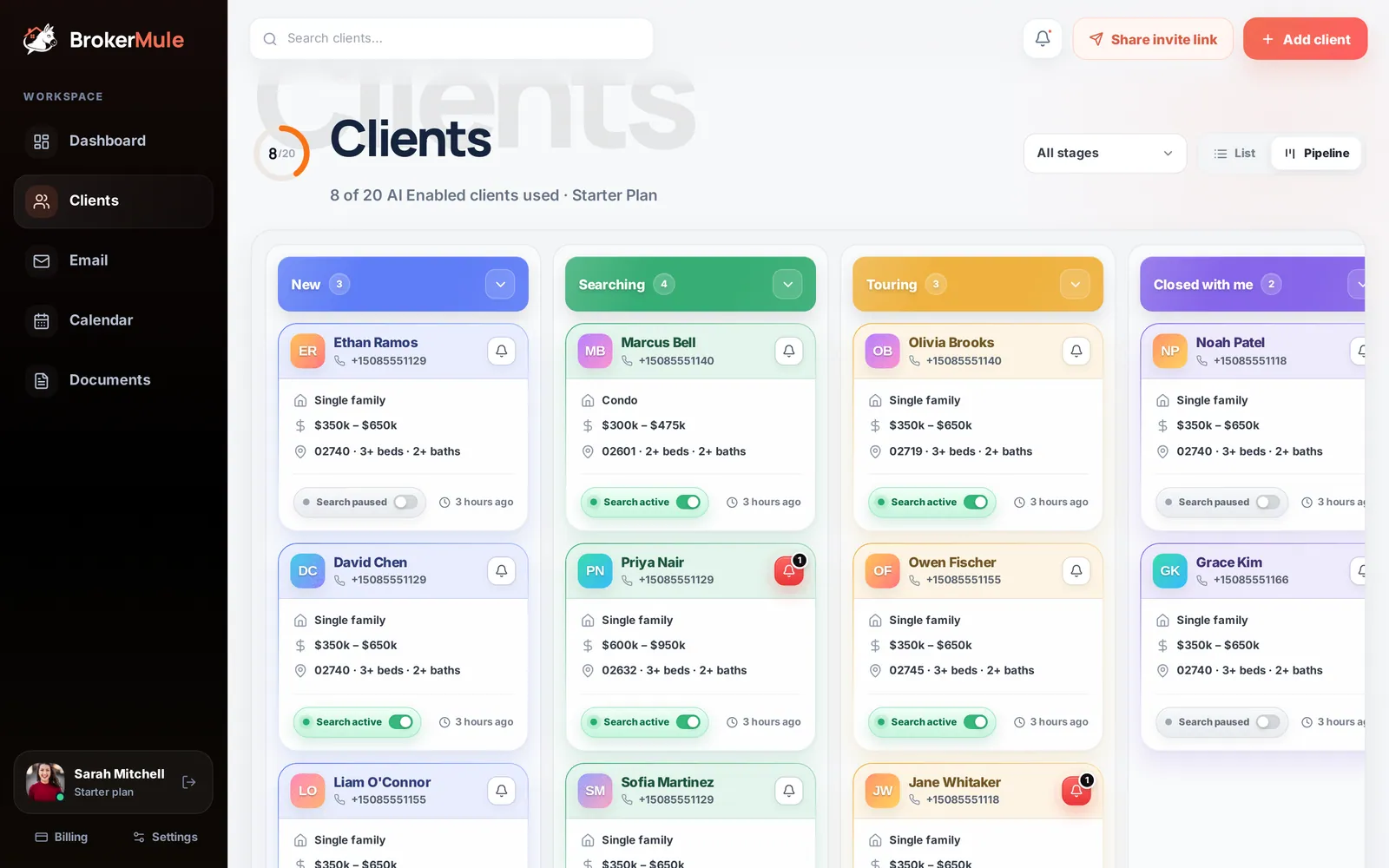
- Organize buyers by stage with the pipeline and list views.
- Explore everything on a client's page: chat, notes, saved homes and tours.
- See what your buyers see on their portal.
- Send branded email campaigns, create documents and e-signatures, and schedule showings on the calendar.
- On the go? Read Using BrokerMule on your phone.
Frequently asked questions
Is BrokerMule really free?
Yes. The CRM is free with unlimited client profiles, notes, documents and a buyer portal. The free plan also includes automated texts for one active buyer. Paid plans add more active texting clients.
Do I need to install an app?
No. BrokerMule runs in your browser on desktop and phone. On a phone it switches to an app-style layout with a bottom navigation bar.
When do my clients get their first listing text?
Active clients get a one-time welcome text right away, then their first listing text on the next weekday at the delivery time you chose, as long as there are new matching homes.
Related guides
From the blog
All articles CRM & textingBest Real Estate CRM for Solo Agents in 2026: What Actually Matters
Solo agents pay for complexity twice — in fees and in setup time. Five criteria that actually predict whether you will use a CRM, plus a shortlist by use case and price.
 CRM & textingBest Simple Real Estate CRM for Agents Who Hate CRMs
If you hate CRMs, you probably do not hate contact management — you hate setup projects and duplicate data entry. How to find a genuinely simple real estate CRM.
 CRM & textingFree Real Estate CRM: What "Free" Actually Means in 2026
Most "free" real estate CRMs are trials or contact caps. Here is how to tell a genuinely free real estate CRM from a countdown clock — and what to check before you import your database.