
Your BrokerMule dashboard, explained
Every stat, chart and list on the dashboard, what it measures and how to act on it each morning.
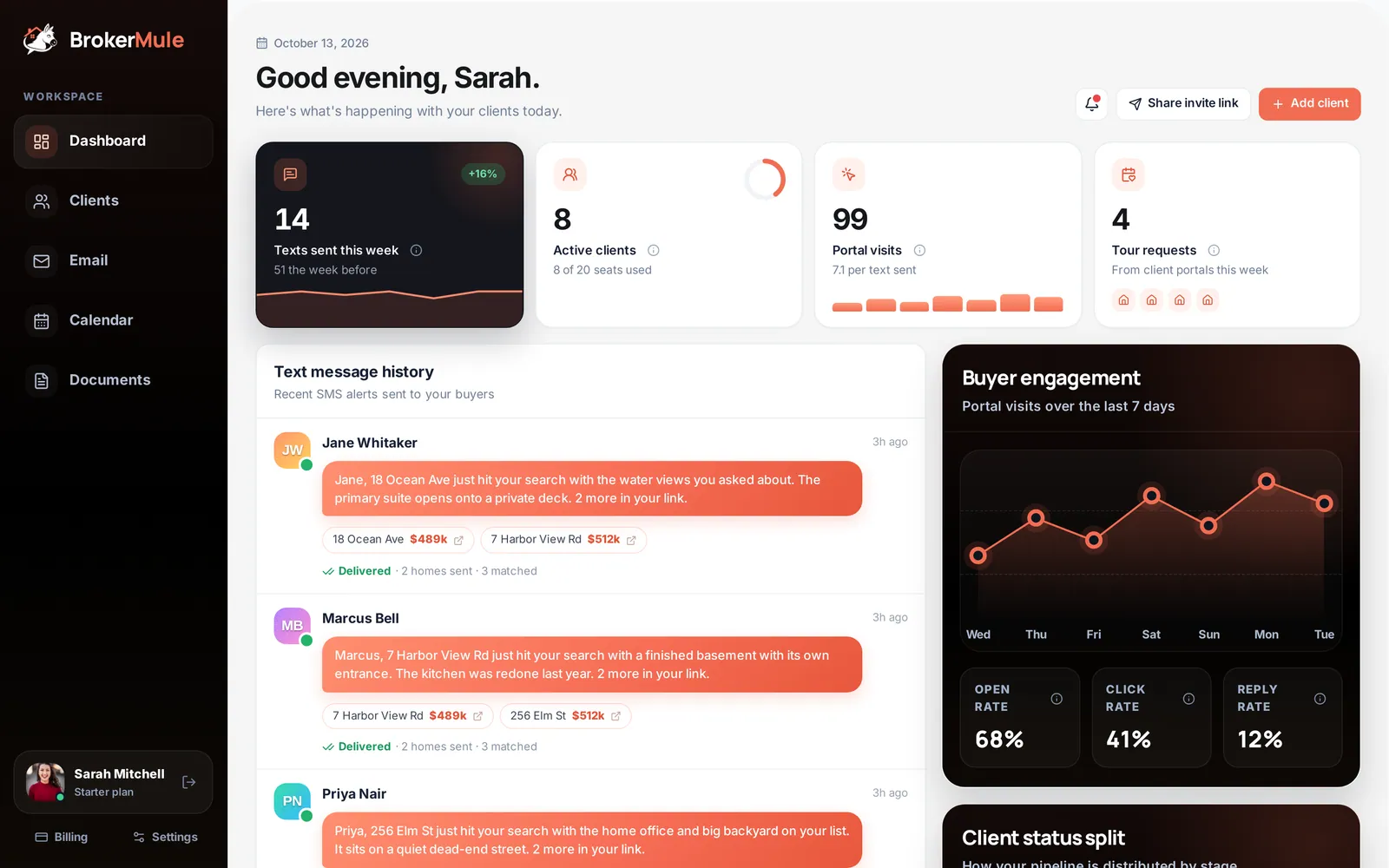
Your dashboard is the first thing you see after logging in. It answers three questions: what went out, how buyers reacted, and who needs you today. The top of the page greets you and has three shortcuts: the bell (notifications), Share invite link and Add client. A small dot on the bell means there's something new since you last opened Notifications.
The four stat cards

- Texts sent this week – texts that actually went out to your clients in the last 7 days, including opt-in welcome texts. Days with no new matches and failed sends don't count. The badge compares it with the 7 days before, and the line underneath shows the daily trend.
- Active clients – clients whose status is Active, meaning they're enabled for automated listing texts. The ring shows how many of your plan's seats you're using (for example "8 of 20 seats used").
- Portal visits – how many times clients opened their portal in the last 7 days. Repeat visits count, so one excited buyer can visit several times per text. "Per text sent" tells you how often a text leads to a visit.
- Tour requests – tour requests clients sent from their portal (or by replying TOUR) in the last 7 days.
Text message history
This is a live log of every text BrokerMule sent for you, newest first. Each row shows the client, a preview of the message, the homes that were included, and whether it was delivered.
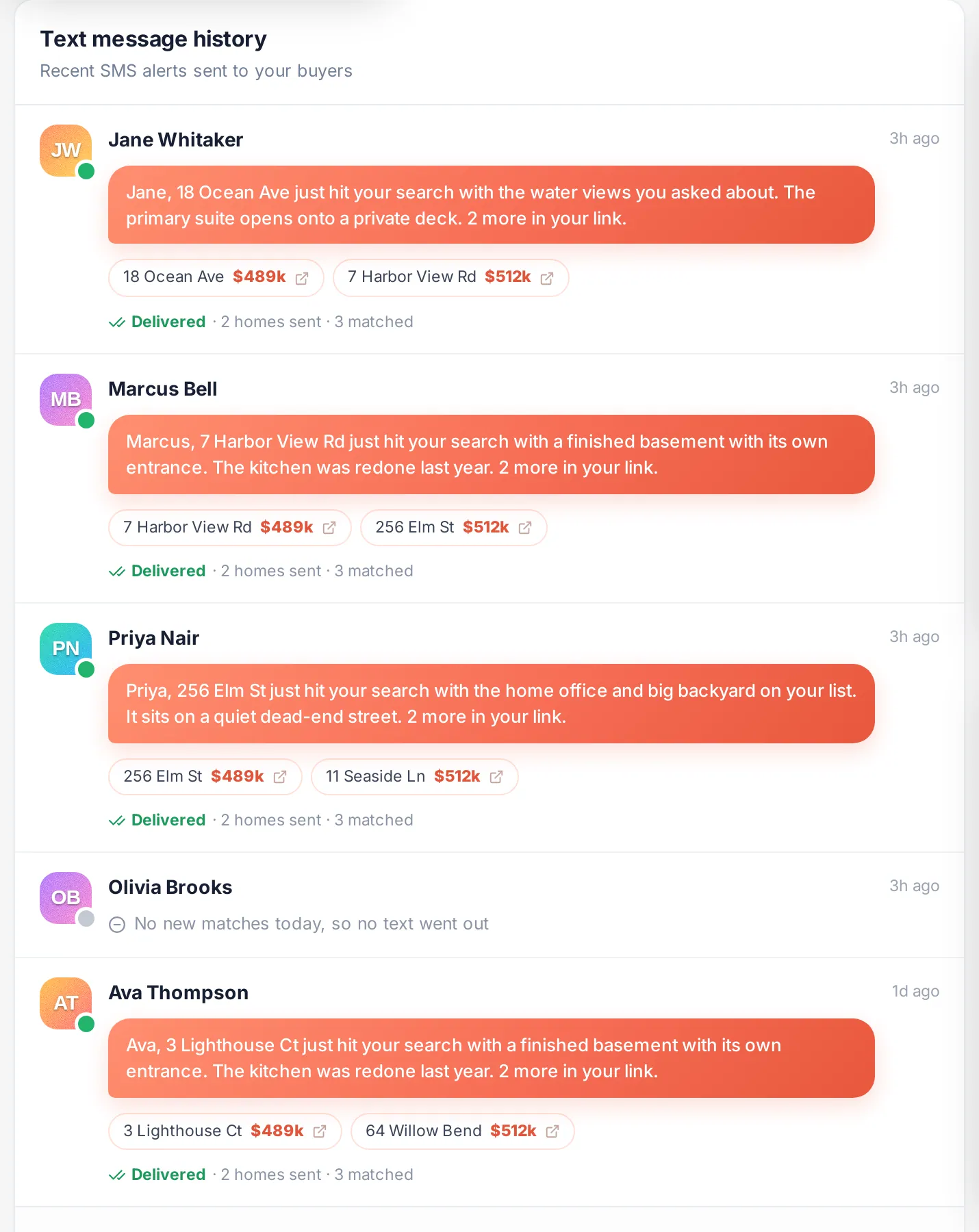
You'll see a few kinds of rows:
- Listing texts – the AI-written message with the homes included and a "Delivered" status.
- Welcome text – the one-time opt-in message a client gets when they're activated.
- No new matches today, so no text went out – BrokerMule found nothing new for that buyer, so it skipped the day instead of sending filler.
- Failed – the carrier couldn't deliver the text. Click View details to see why.
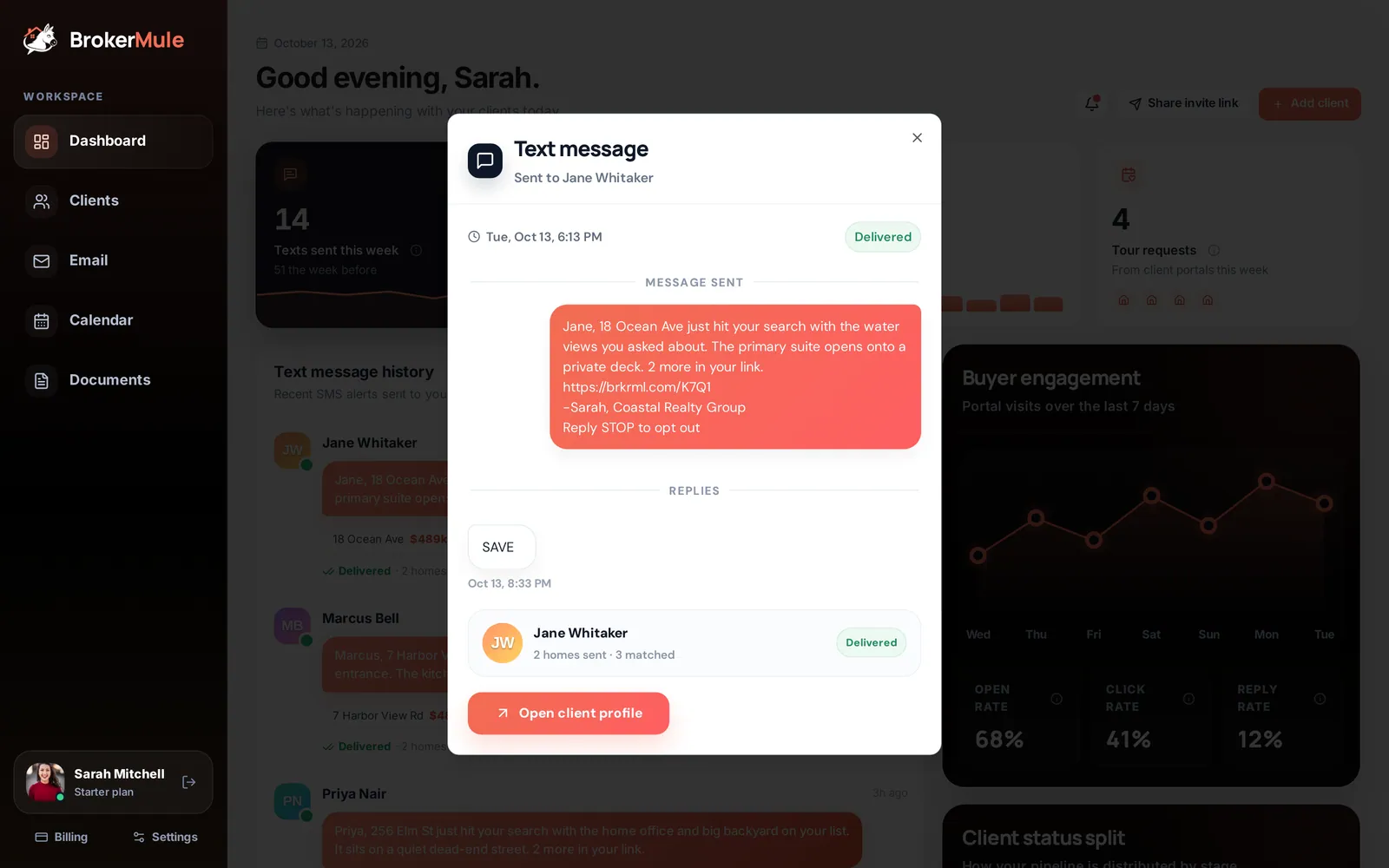
Click any row to open the full message, the listings it linked to, and any replies the client sent back. From there, Open client profile takes you straight to that buyer.
Recent client feedback
When a buyer taps Send feedback on a home in their portal, their comment shows up here with the address, so you can see what's resonating ("Love the kitchen!") and what isn't ("Too close to the main road"). View all opens the full list in Notifications.
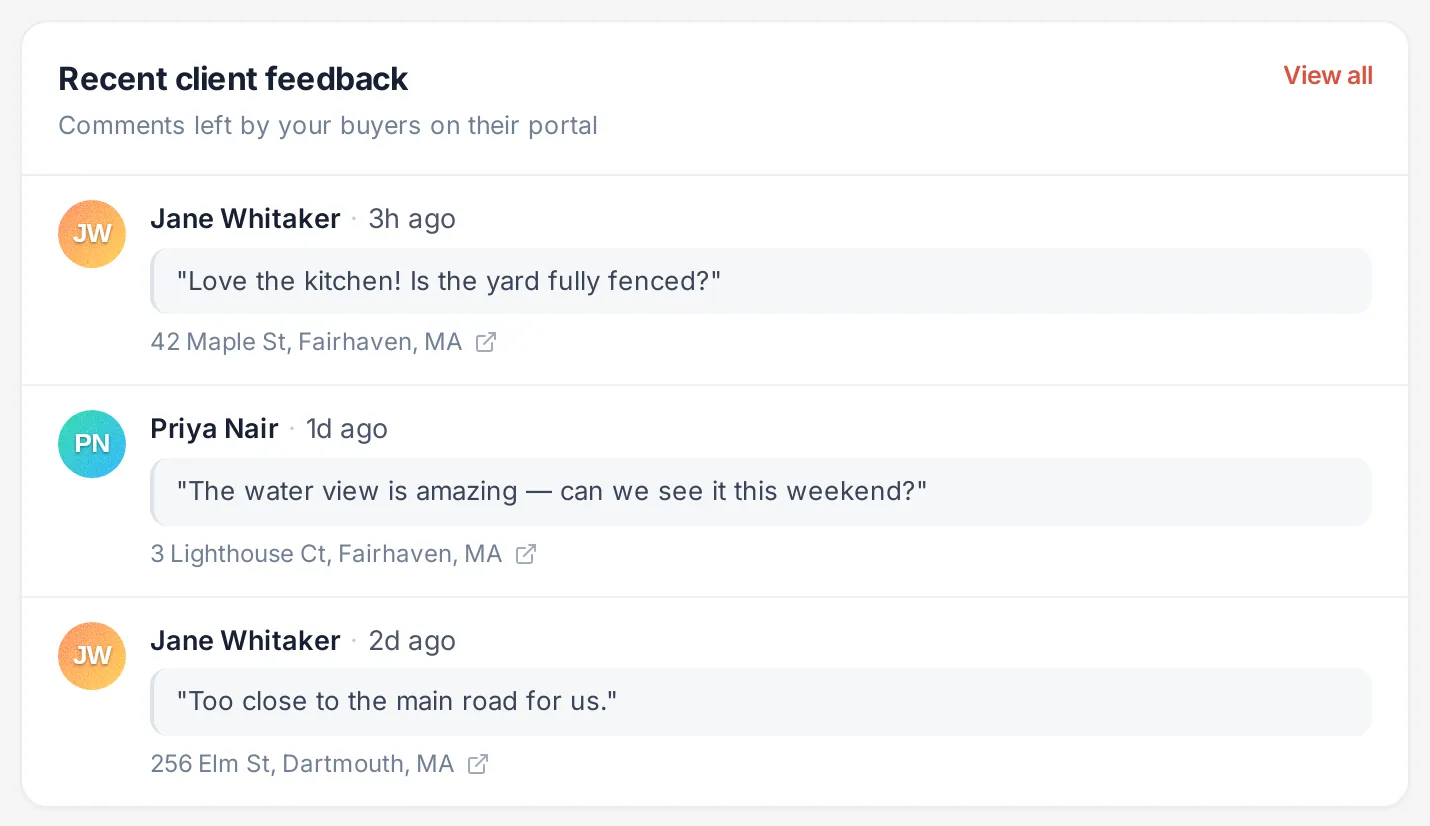
Feedback isn't just for you. The AI reads recent feedback and replies before writing a client's next text, so their messages get more relevant over time.
Homes clients want to see
Every tour request appears as a card with the home's photo, price and address, plus who asked and when. Use the arrows to scroll through them.
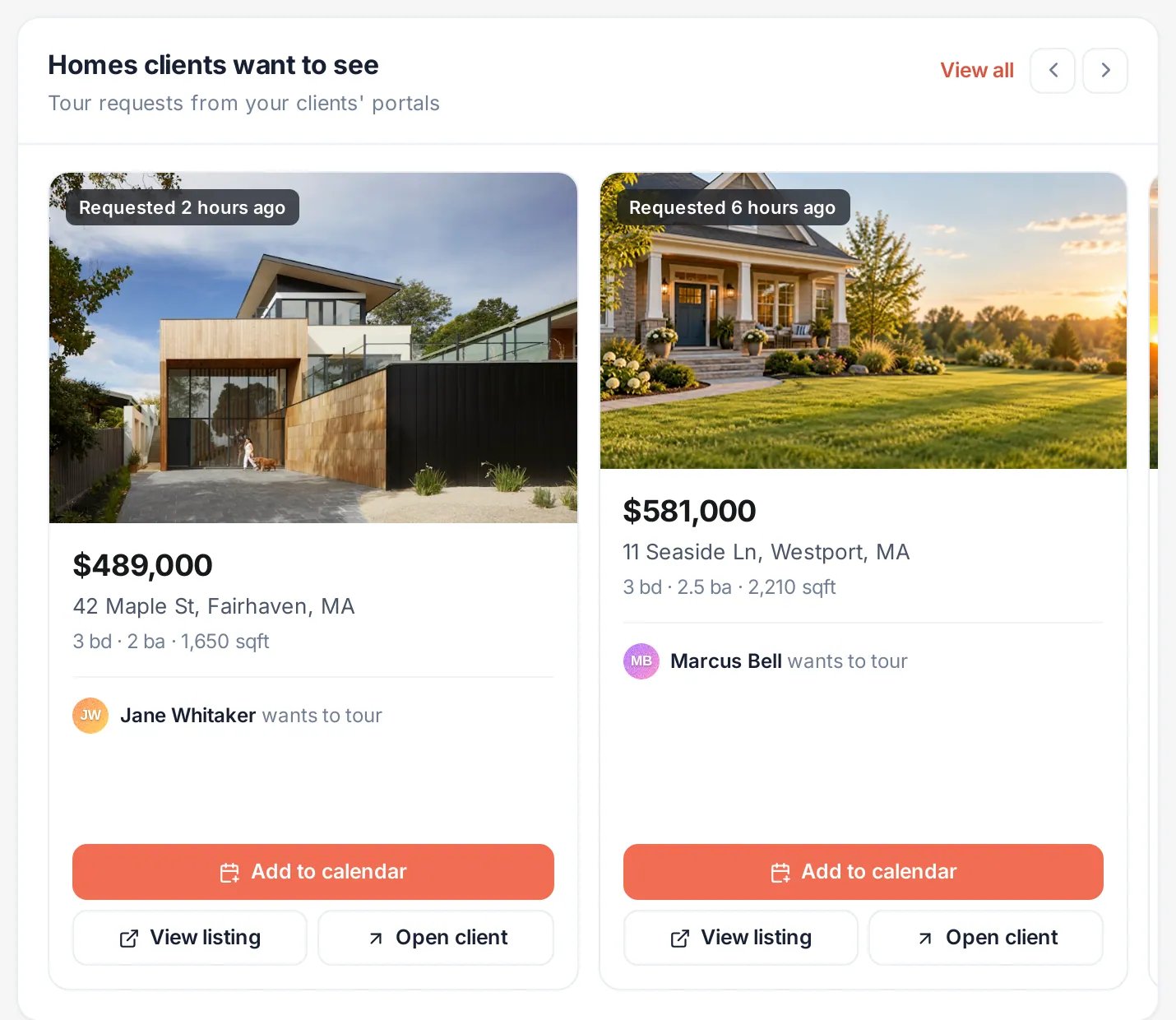
- Add to calendar opens a new event already linked to the client and the property. See Calendar.
- View listing opens the listing.
- Open client jumps to the buyer's page.
Buyer engagement
A 7-day chart of portal visits, with three rates underneath. Hover any point to see that day's numbers.
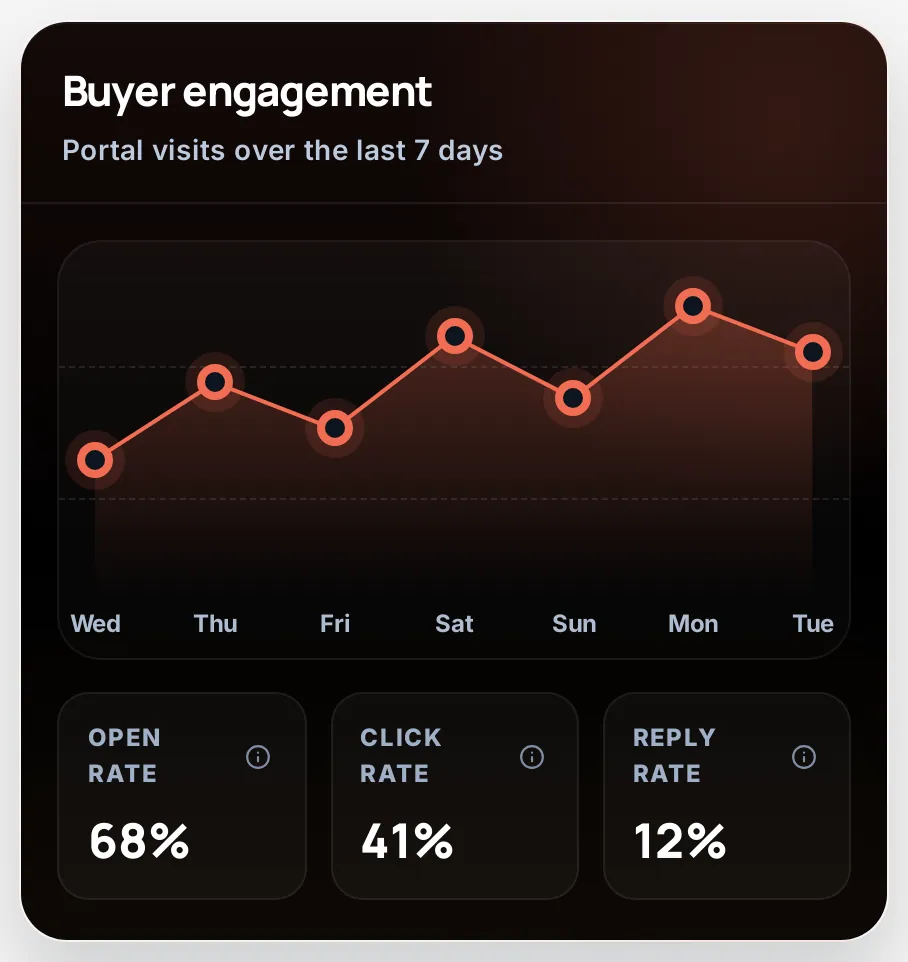
- Open rate – portal visits ÷ texts sent over the last 7 days. Repeat visits count, so this can be above 100%.
- Click rate – listing clicks ÷ texts sent. A click is logged each time a buyer opens a listing from their portal.
- Reply rate – SMS replies ÷ texts sent.
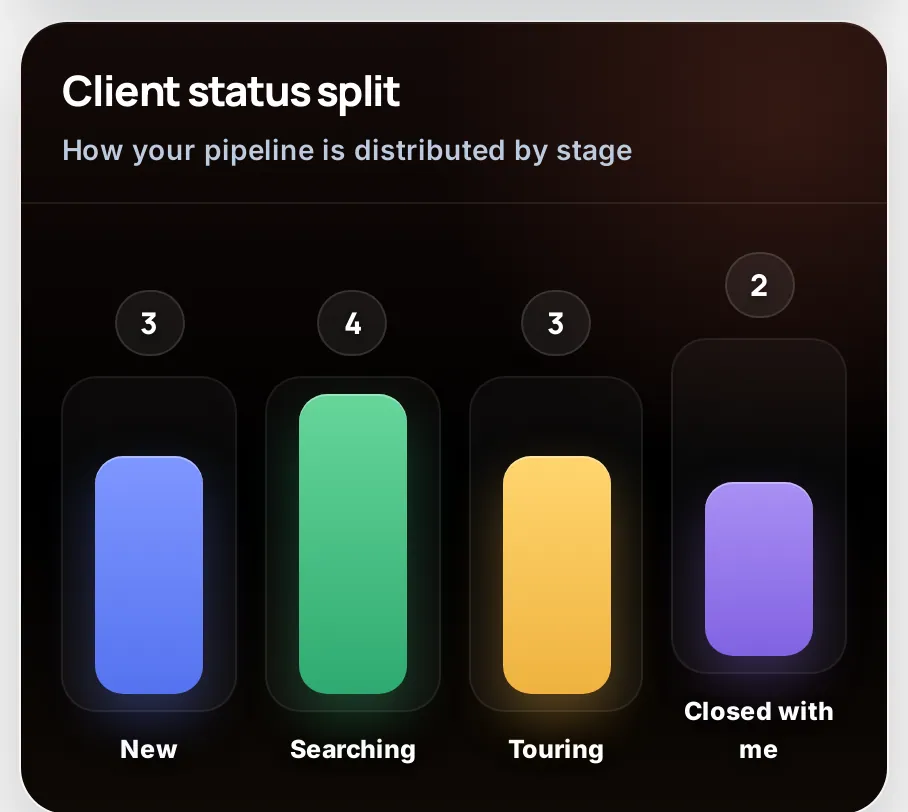
Client status split
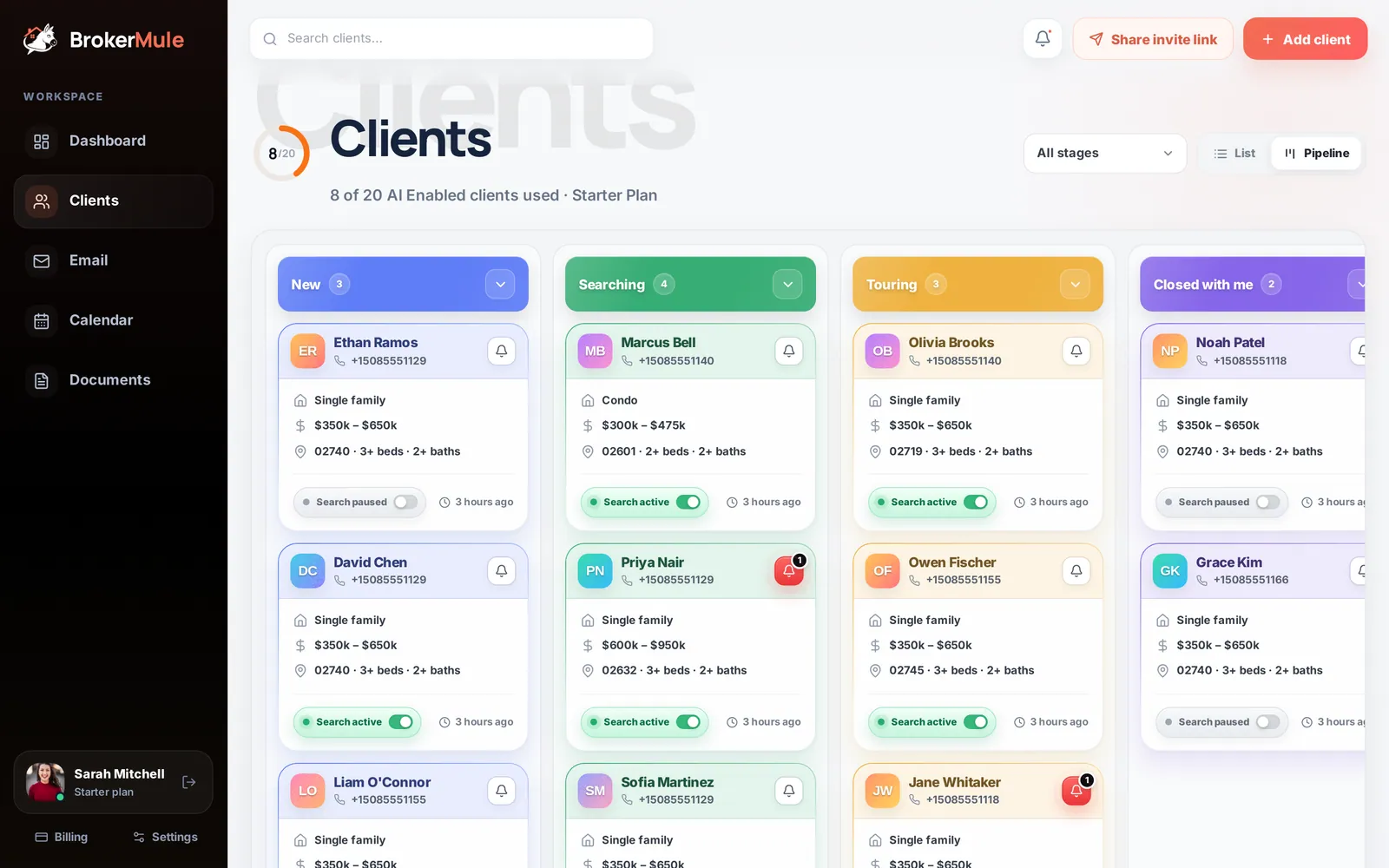
How your clients are spread across your pipeline stages: New, Searching, Touring and Closed with me (or whatever you've renamed them to). It's a quick read on where your business is. Stages are explained in Managing clients.
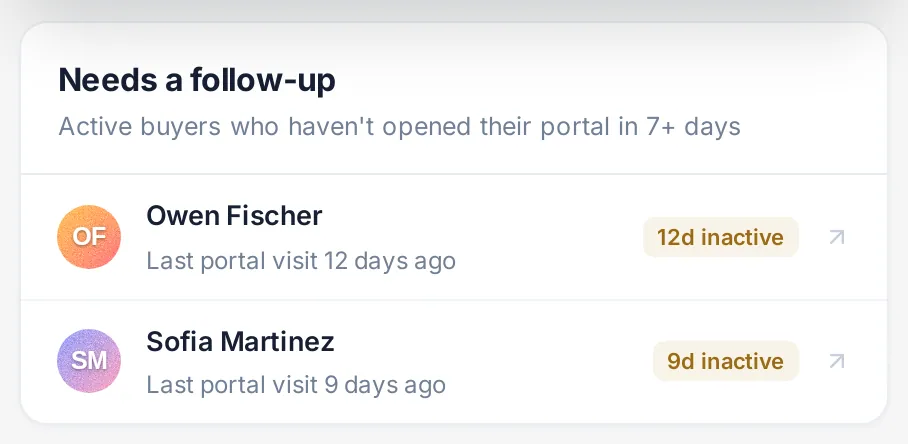
Needs a follow-up
Active buyers who haven't opened their portal in 7 or more days, longest first. These are the people most likely to have cooled off, bought elsewhere or changed what they're looking for. A quick call or chat message usually tells you which.
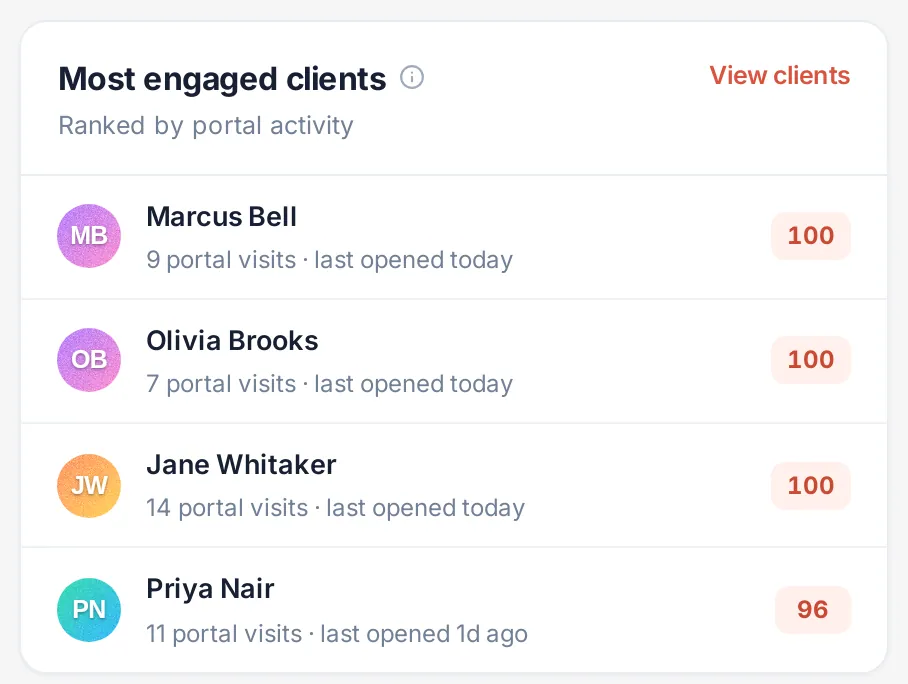
Most engaged clients
Your hottest buyers, ranked by a score out of 100: 10 points per portal visit (up to 70), plus up to 30 recency points that drop by 4 for each day since their last visit. Someone who opens their portal every day will sit near the top. They're often the closest to making an offer.
Quick actions
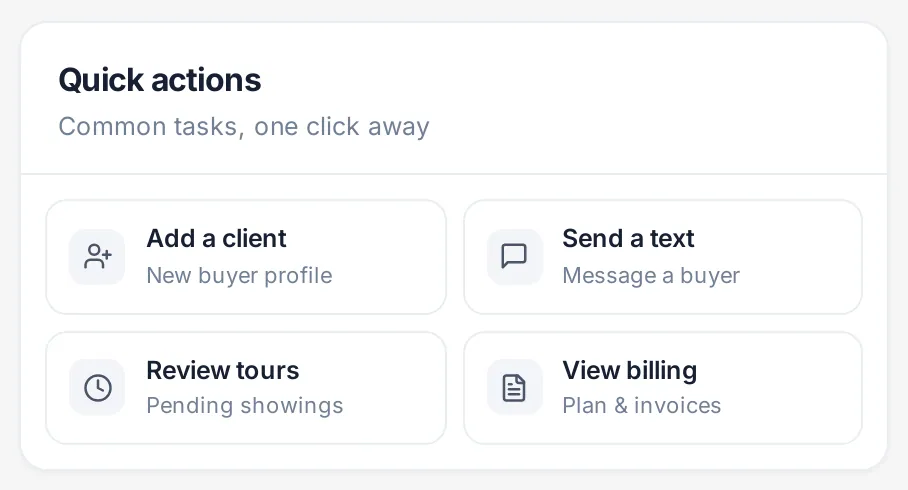
Shortcuts for the things you do most: Add a client, Send a text, Review tours and View billing.
A five-minute morning routine
- Glance at the stat cards for anything unusual, like a spike in visits or a drop in texts.
- Check Homes clients want to see and add showings to your calendar.
- Read Recent client feedback and reply to anything that needs an answer.
- Work through Needs a follow-up.
- Peek at Most engaged clients and call the top one.
On a phone, the same dashboard is stacked in one column ordered by what needs action first. See Using BrokerMule on your phone.
Frequently asked questions
Why is my open rate over 100%?
Open rate is portal visits divided by texts sent. Repeat visits count, so a buyer who opens their portal three times after one text adds three visits.
Why does a client show “No new matches today”?
BrokerMule only texts when it finds homes the buyer has not already been sent. If nothing new matched their search that day, it skips the text rather than repeat old listings.
How often does the dashboard update?
Every time you open it. Data is fetched fresh on each visit, and going back to the dashboard shows your last view instantly while the new numbers load.
Related guides
From the blog
All articles CRM & textingDo Solo Realtors Really Need an All-in-One Real Estate CRM?
All-in-one platforms promise fewer logins — and often deliver features solo agents never touch. How to calculate your unused feature tax before committing.
 CRM & textingBest Real Estate CRM for Solo Agents in 2026: What Actually Matters
Solo agents pay for complexity twice — in fees and in setup time. Five criteria that actually predict whether you will use a CRM, plus a shortlist by use case and price.
 CRM & textingBest Simple Real Estate CRM for Agents Who Hate CRMs
If you hate CRMs, you probably do not hate contact management — you hate setup projects and duplicate data entry. How to find a genuinely simple real estate CRM.