
Sending branded email campaigns to your clients
Pick a template, personalize it, choose recipients, send yourself a test, then send. Includes merge tags and monthly email limits.
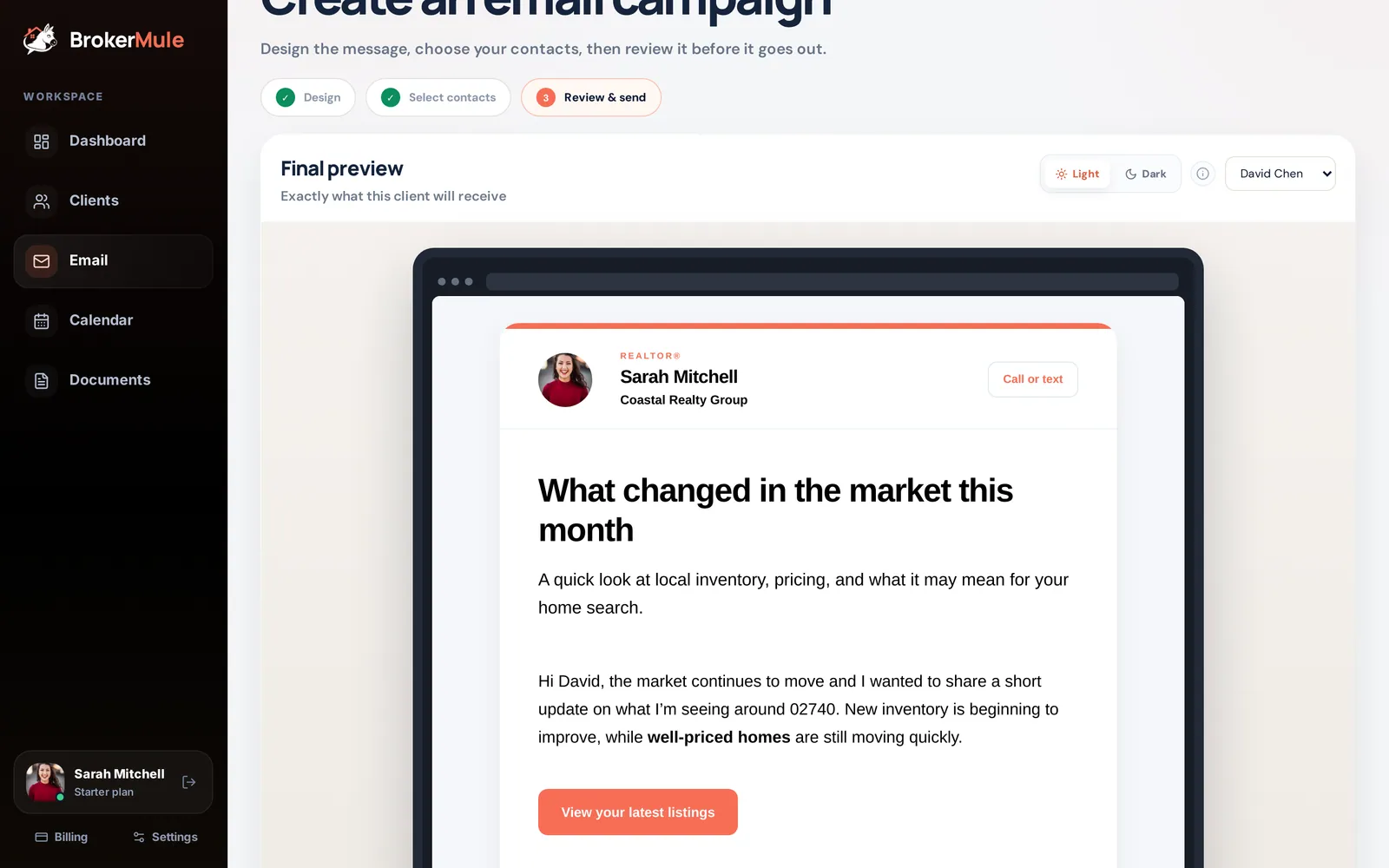
Quick steps
- Choose a templateOpen Email and pick a template like Monthly market update or Open house roundup.
- Edit the campaignChange the subject, headline, supporting text, hero image, main message, button and branding. The preview updates live.
- Select contactsClick Next: Select contacts and tick the clients who should receive it.
- Review and testClick Next: Review & send, preview each recipient’s version and send yourself a test.
- SendSend the campaign to everyone selected.
Texts are great for "a new home just hit." Email is better for longer updates: monthly market reports, open-house roundups, holiday notes and check-ins. The Email page walks you through a campaign in three steps: Design, Select contacts and Review & send.
Step 1: Design
Choose a template from the dropdown. You'll find:
- Monthly market update
- Welcome new clients
- Open house roundup
- Personal client check-in
- seasonal notes like Happy 4th of July and Happy Thanksgiving
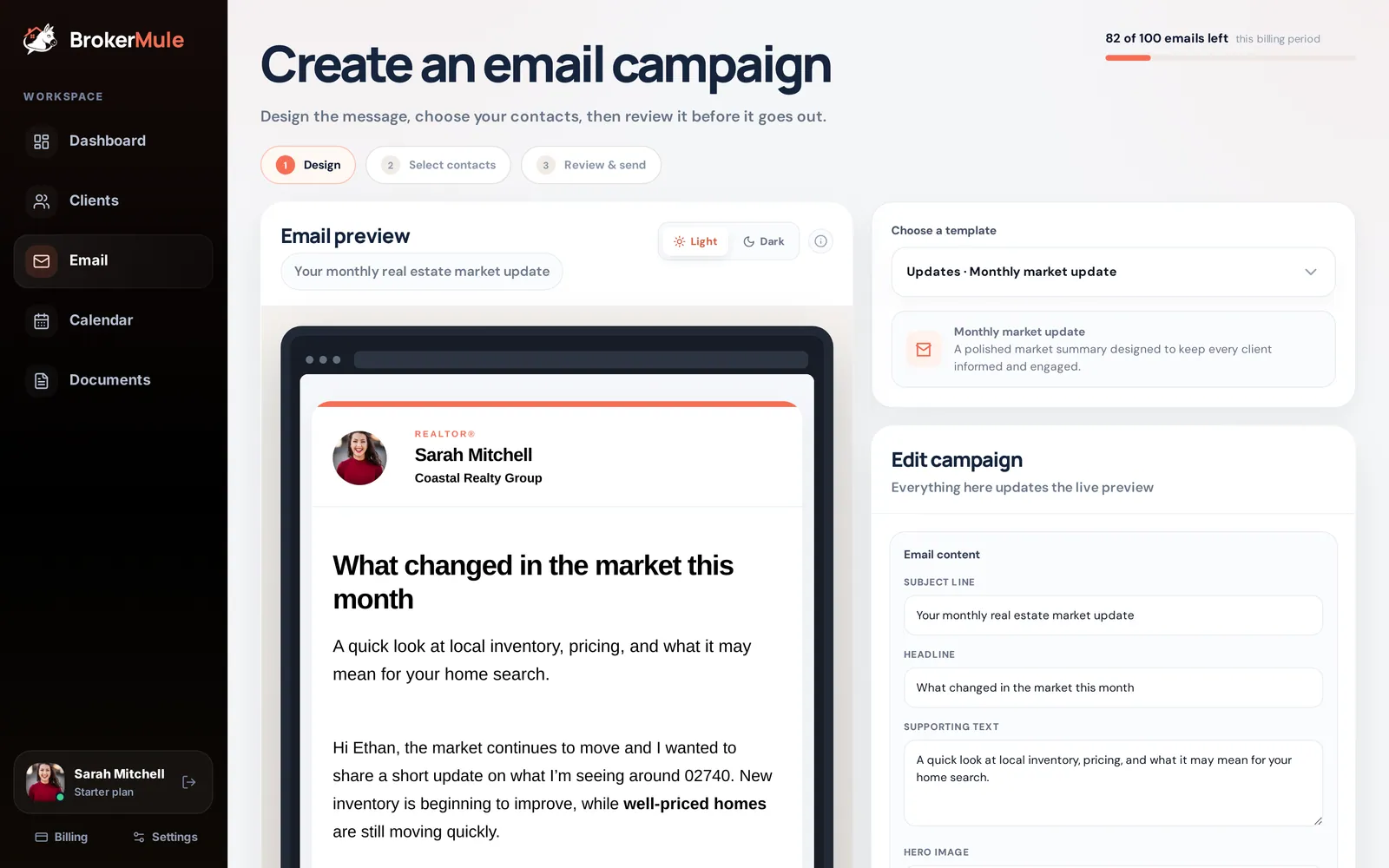
Then customize it in Edit campaign:
- Subject line, Headline and Supporting text
- Hero image – pick one of the built-in home photos, or turn it off
- Main message – with headings, bullet lists and links
- Button text and Button link – like "View your latest listings" pointing to your website (or hide the button)
- Branding – your business name and an accent color
Toggle Light and Dark above the preview to see how it looks in dark-mode inboxes.
Merge tags
Make one email feel personal to everyone with merge tags. They're replaced for each recipient when it sends:
- {{first_name}} and {{last_name}}
- {{city}} – their target area (or ZIP code)
- {{agent_name}} – your name
- {{current_date}}
"Hi {{first_name}}, here's what changed around {{city}} this month" becomes "Hi Jane, here's what changed around 02740 this month."
Step 2: Select contacts
Click Next: Select contacts and tick the clients who should get it, or use Select all. Search by name, email or ZIP code. Each row shows the client's area, budget and status.
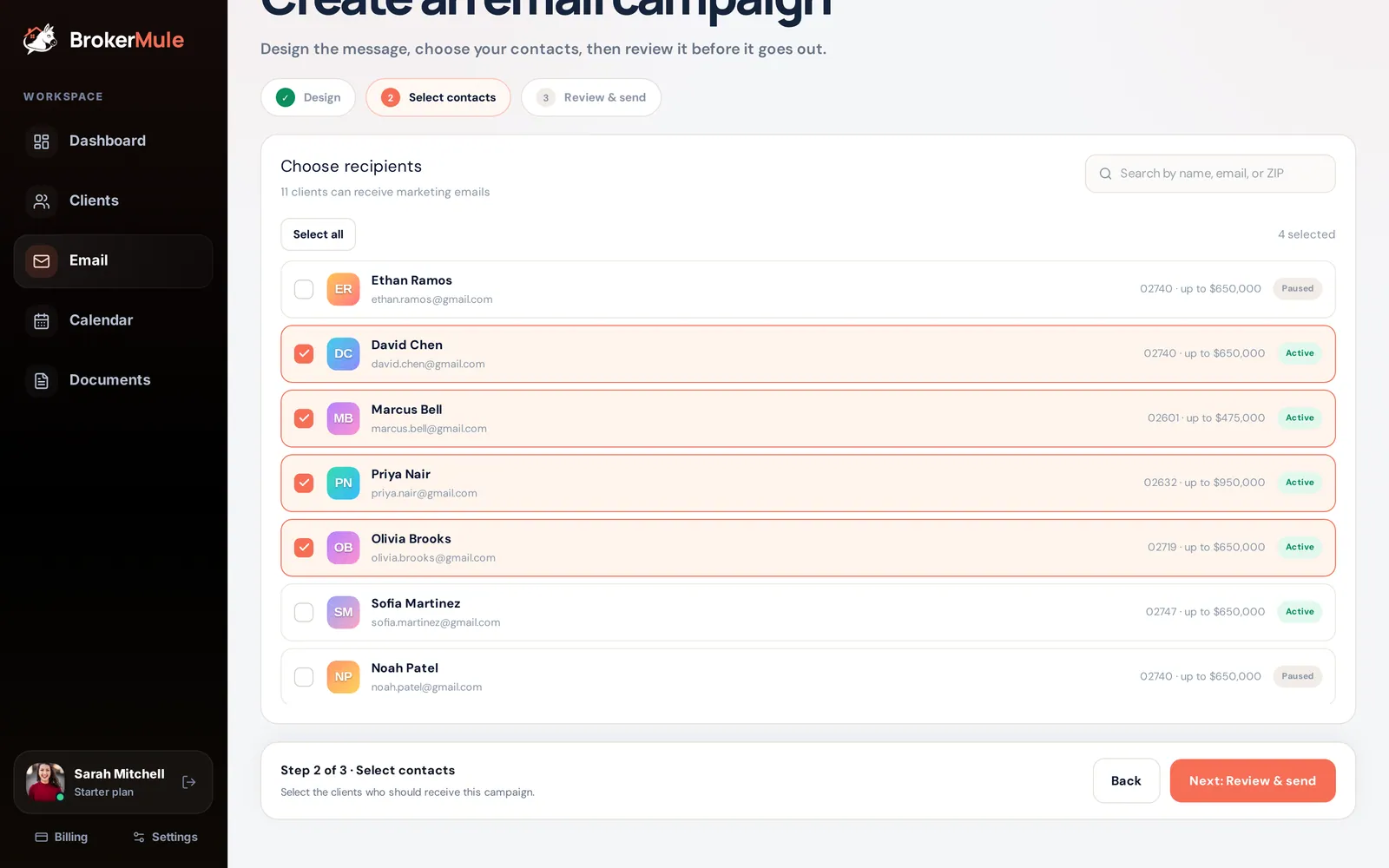
Clients without an email address, or who have unsubscribed, can't be selected.
Step 3: Review & send
The Final preview shows exactly what each recipient will get. Pick a name from the dropdown to see their personalized version. The summary lists the subject, recipient count, template and emails left after send.
Use Send yourself a test first to check it in your own inbox, then send. When it's done, you'll see a confirmation.
Unsubscribes are automatic
Every campaign includes an Unsubscribe link in the footer. If a client clicks it, they're removed from future campaigns automatically and shown as "Unsubscribed" in the recipient list. Their listing texts aren't affected.
Monthly email limits
Email campaigns are included with paid plans, and the allowance resets every billing period:
- Starter – 100 emails per month
- Pro – 600 emails per month
Your remaining emails are shown at the top of the Email page. One email to one client counts as one, so a campaign to 25 clients uses 25. If a campaign would go over your allowance, BrokerMule won't let you send it until you trim the list or upgrade.
Frequently asked questions
Can I send emails on the free plan?
Email campaigns are included with Starter (100 emails a month) and Pro (600 emails a month).
What happens when a client unsubscribes from email?
They’re automatically excluded from future campaigns and shown as Unsubscribed. Their automated listing texts are not affected.
Can I personalize each email?
Yes. Merge tags like {{first_name}}, {{city}} and {{agent_name}} are replaced for each recipient when the campaign sends.
Related guides
From the blog
All articles Lead follow-upHow to Stay in Touch With Past Clients: A 12-Month Plan for Real Estate Agents
A month-by-month plan for staying in touch with past buyers, so the referrals keep coming.
 Lead follow-upReal Estate Drip Campaign Examples: Text and Email Sequences That Don’t Feel Automated
Three ready-to-use drip sequences for buyers, with the exact texts and emails, and how to keep them personal.
 Marketing & growth30 Real Estate Newsletter Ideas Your Clients Will Actually Open
30 ideas, a 12-month content calendar and subject lines that get opened, for buyers and past clients.