
Importing clients from another CRM or spreadsheet
Bring your whole client list over from another CRM or a spreadsheet: upload or paste, match columns, review, import. Texts stay off until you turn them on.
Quick steps
- Export from your old CRMIn your current CRM or spreadsheet, export your contacts as a CSV or Excel file.
- Open ImportOn the Clients page, click Import next to the stage filter.
- Upload or pasteDrop in the CSV or Excel (.xlsx) file, or paste rows copied from a spreadsheet.
- Match columnsCheck which column holds the first name, last name, phone, email and ZIP code. Each option shows an example from your file.
- Review and importSee who is ready, who needs a ZIP and who will be skipped, choose a stage, then import.
Switching CRMs shouldn't mean re-typing every buyer. BrokerMule's importer takes the file your old CRM exports (or rows straight from a spreadsheet), figures out which column is which, and shows you exactly what will happen before anything is saved.
Imported clients come in with texts paused, so nobody gets a message until you decide they should.
Step 1: Export your clients from your old CRM
Almost every CRM can export contacts. Look for Export, Download or Export to CSV on its contacts, people or leads page, and export everyone. A few tips:
- Follow Up Boss, kvCORE / BoldTrail, Lofty, Wise Agent, LionDesk and most others export a CSV with one row per contact. That's exactly what you need.
- Google Sheets: File → Download → Comma-separated values (.csv), or just copy the rows and paste them.
- Excel: upload the .xlsx file directly. Older .xls files need to be saved as .xlsx or CSV first.
- Up to 2,000 clients per import. For bigger lists, split the file and import it in parts.
Not sure which CRM fits you after the move? Our Follow Up Boss alternatives, kvCORE alternatives and Lofty alternatives articles compare the options.
Step 2: Upload or paste
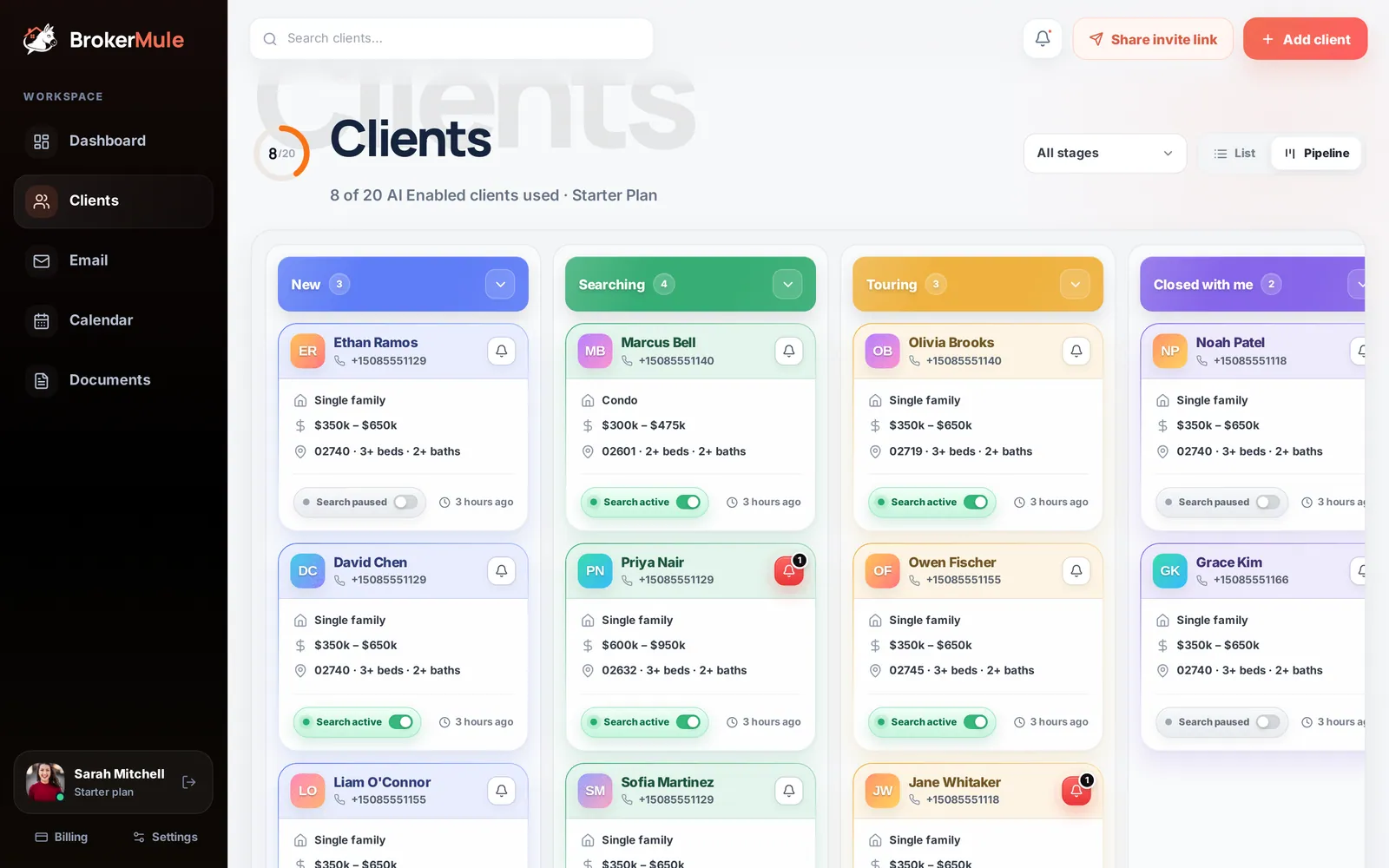
On the Clients page, click Import next to the stage filter. If you don't have any clients yet, use Import from another CRM or spreadsheet under "Add your first client."
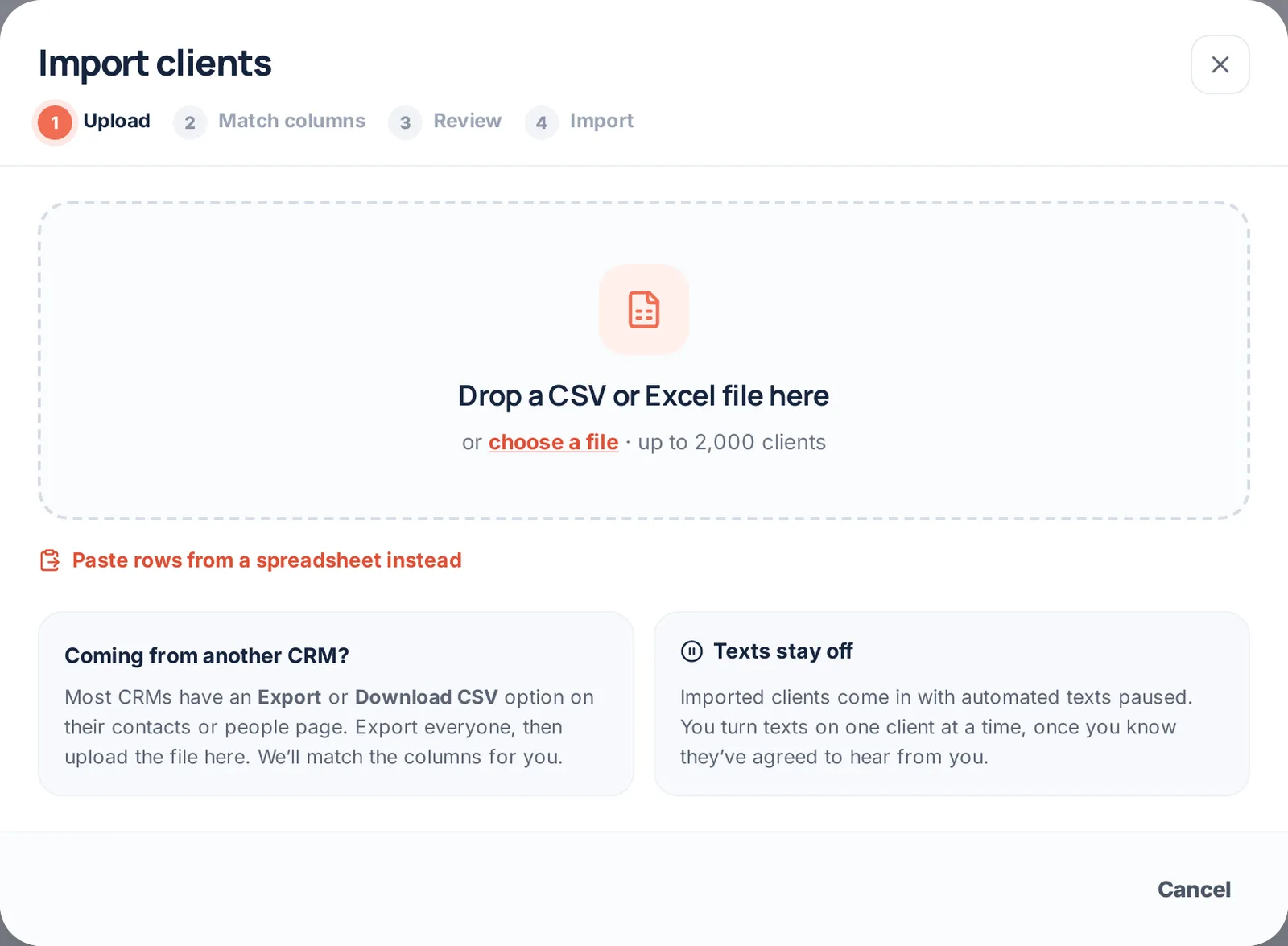
Drop your file in, or click Paste rows from a spreadsheet instead and paste. Include the header row (the row with column names) if your data has one.
Step 3: Match your columns
BrokerMule reads your column names and makes its best guess. A preview of your first few rows sits at the top, with a green label over each column we're using, so you can see your data while you match it.
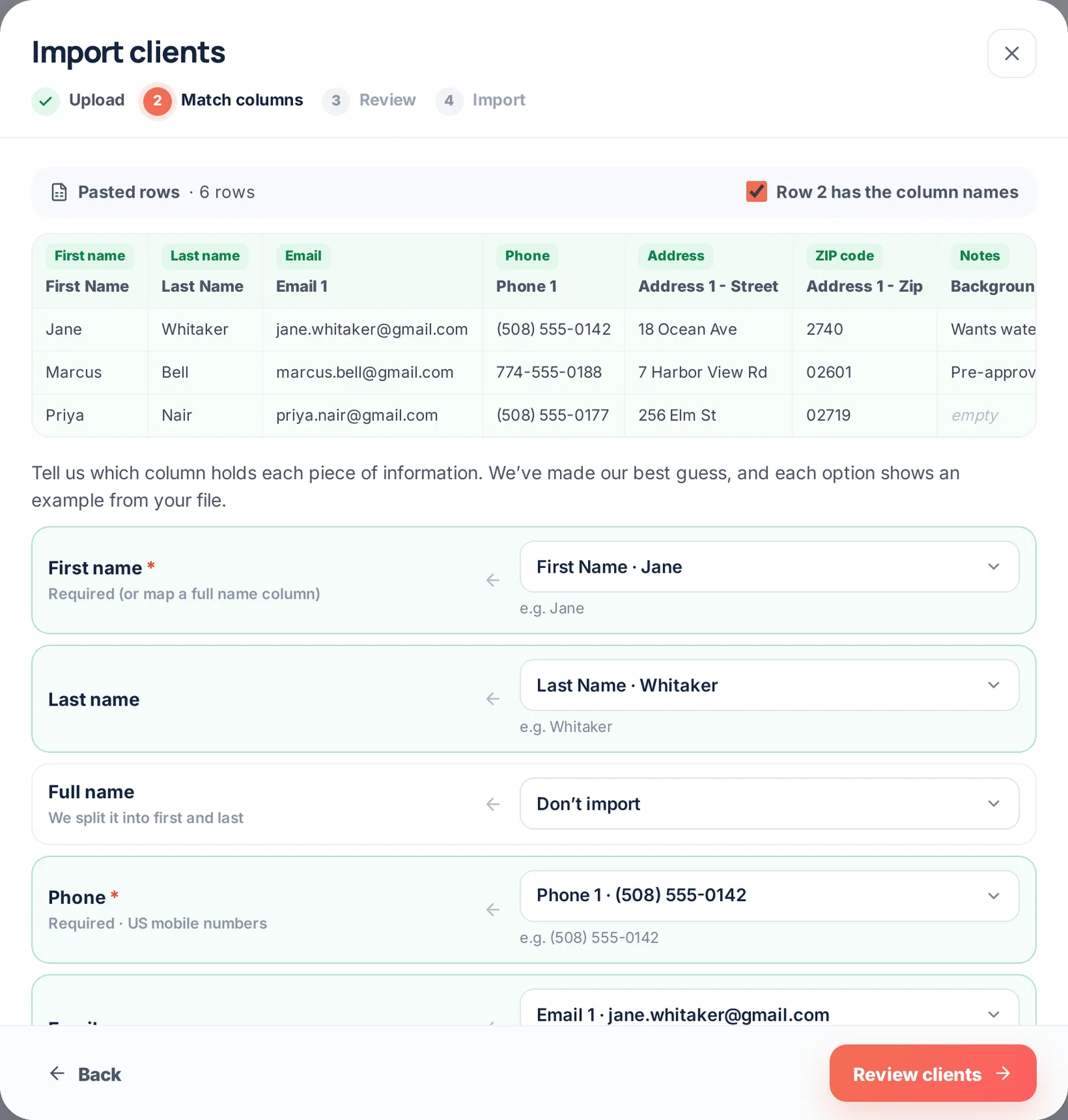
For each field, pick the column it lives in:
| BrokerMule field | What to pick |
|---|---|
| First name (required) | Your first name column, or map Full name instead |
| Last name | Your last name column |
| Full name | A single "Name" column. We split it into first and last |
| Phone (required) | The mobile or cell number. Any format works |
| The main email address | |
| ZIP code | The ZIP or postal code column |
| Address | Use this if there's no ZIP column. We pull the 5-digit ZIP out of the address |
| Notes | Background or notes. Saved as a private note on each client |
Every option in the dropdowns shows an example value, like Phone 1 · (508) 555-0142, so you can tell columns apart even when the names are vague.
Headers are handled for you. If your export starts with a title line or blank rows, we find the real header row (you'll see "Row 2 has the column names"). If the same header row appears again partway through, for example when two exports were pasted together, it's skipped. No header at all? Untick the box and the columns are numbered, with examples so you can still match them.
Excel and ZIP codes. Spreadsheets often drop the leading zero from ZIP codes (02740 becomes 2740). The importer puts it back.
Finally, choose the stage everyone should start in. Every imported client also gets an Imported tag, so you can find them later.
Step 4: Review before anything is saved
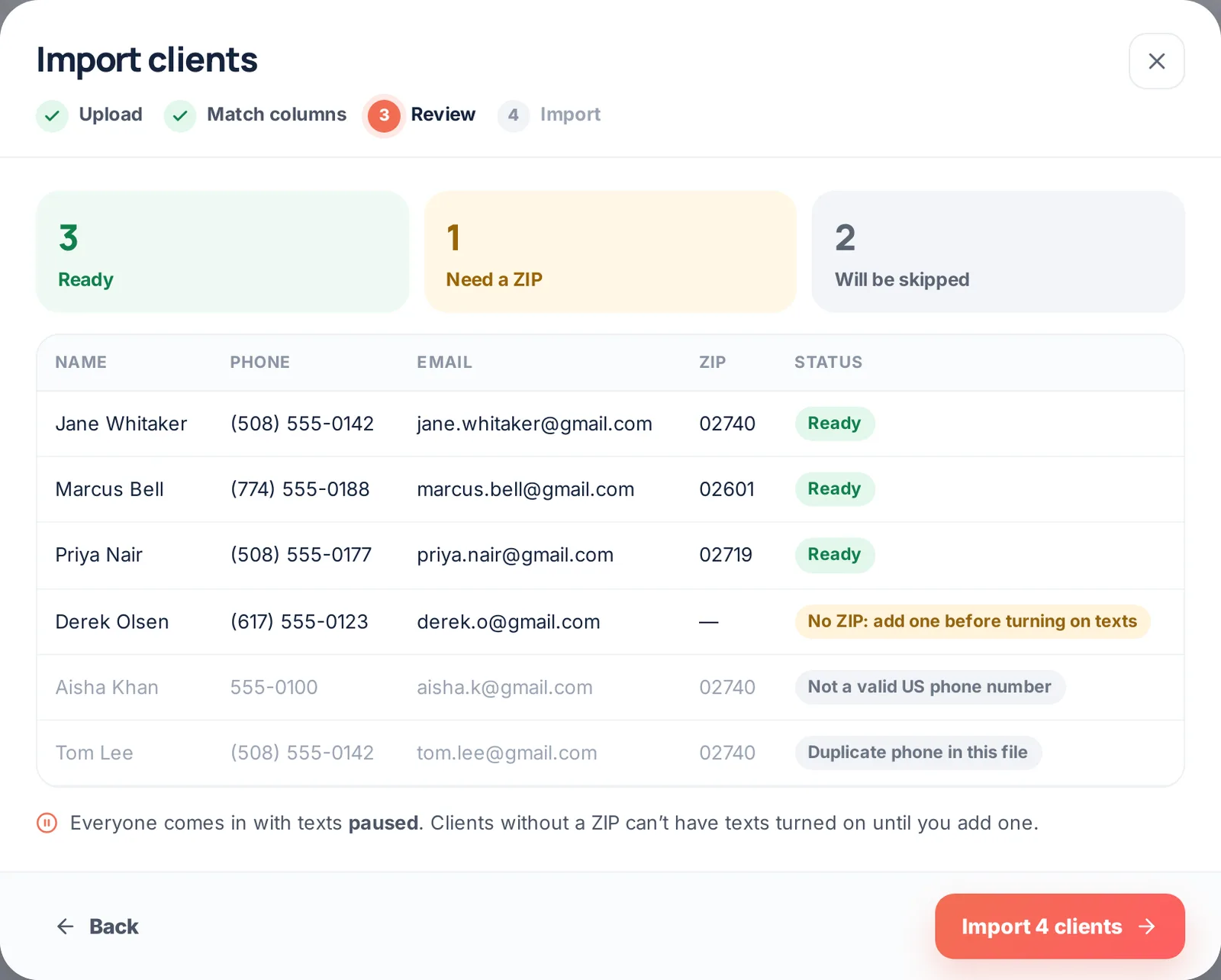
The review screen sorts every row into three groups. Click a group to filter the table:
- Ready. Has a name, a valid phone number and a ZIP code.
- Need a ZIP. Will be imported, but texts can't be turned on until you add a ZIP to their search.
- Will be skipped. With the reason: no first name, no phone number, not a valid US phone number, already in your clients, or a duplicate phone in the same file.
Click Import when it looks right.
Step 5: Check the results
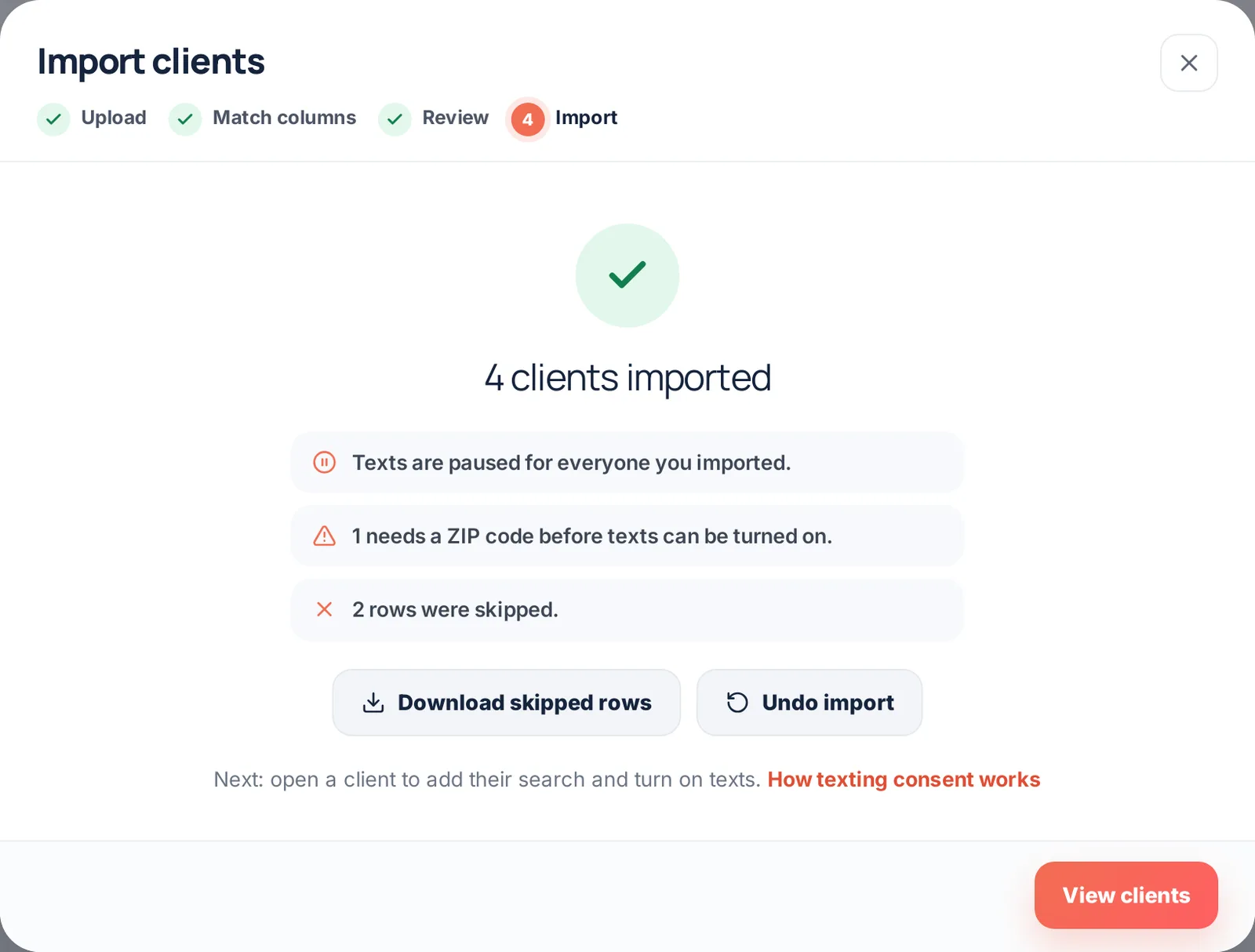
You'll see how many clients were imported, how many need a ZIP and how many were skipped. Two buttons help clean up:
- Download skipped rows saves a CSV of every skipped row with the reason in an extra column. Fix them and import that file.
- Undo import removes everyone from that import in one click.
After you import: turning on texts
Texts stay off for everyone you import. Agreeing to hear from another tool isn't the same as agreeing to automated listing texts from you, so turn texts on one client at a time once you know they want them. Our real estate SMS compliance guide explains why consent matters.
To get a client ready:
- Open them from the Clients page.
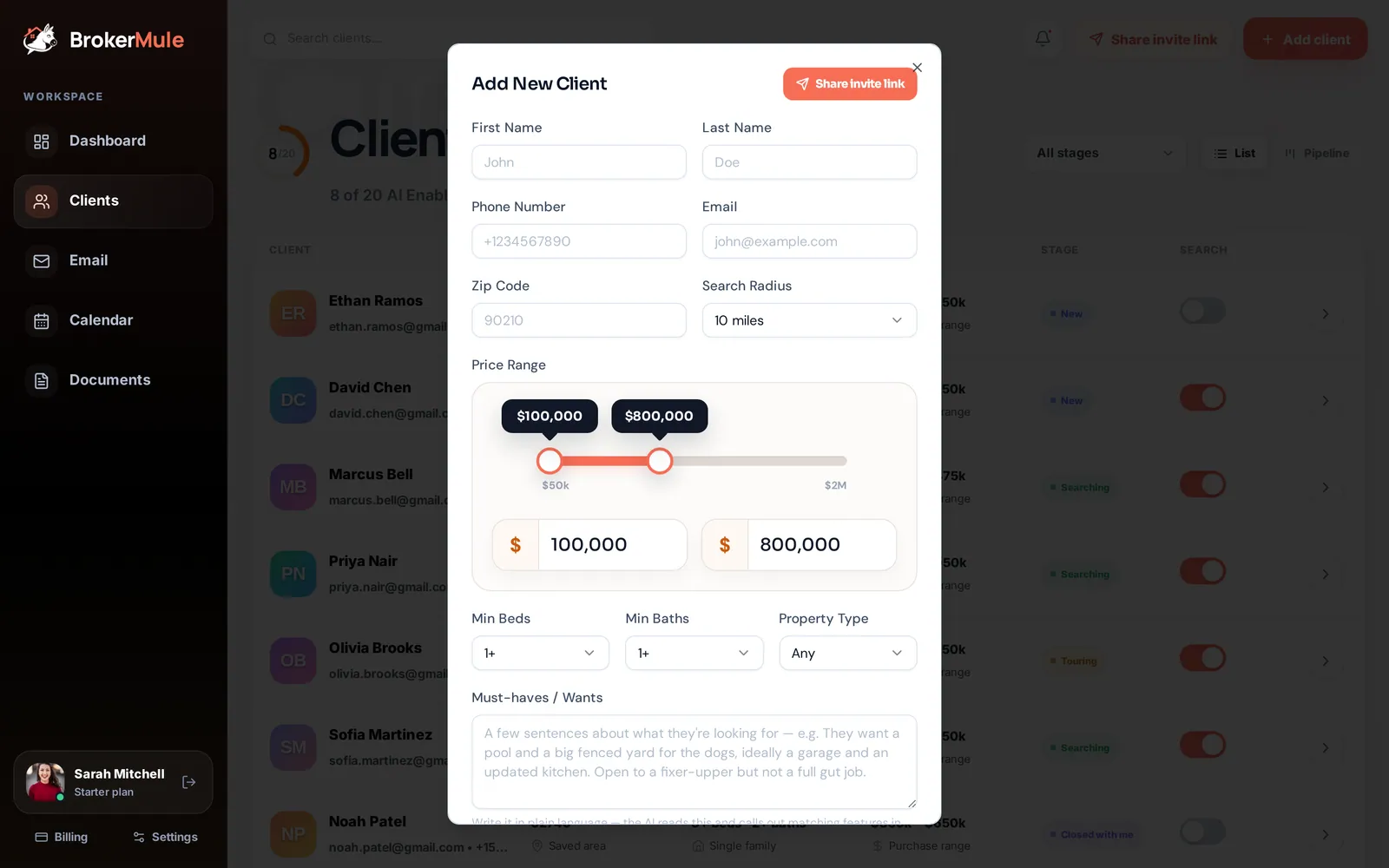
- Fill in their search: ZIP, price range, beds, baths and must-haves. See adding clients for what each field does.
- Switch their search on. If a client has no ZIP code yet, BrokerMule asks you to add one first.
Want a buyer to fill in their own search instead? Send them your invite link.
Frequently asked questions
Which CRMs can I import from?
Any CRM that can export contacts to a CSV or Excel file, including Follow Up Boss, kvCORE / BoldTrail, Lofty, Wise Agent, LionDesk and IXACT Contact, plus Google Sheets and Excel.
Will my imported clients start getting texts?
No. Every imported client comes in with texts paused. You turn texts on one client at a time after confirming they agreed to receive them.
What if my file doesn’t have a ZIP code column?
Map an Address column instead and BrokerMule pulls the ZIP out of it. Clients with no ZIP at all still import, but need a ZIP before texts can be turned on.
What happens to duplicates?
Rows with a phone number that’s already in your clients, or that appears twice in the same file, are skipped and listed with the reason.
Can I undo an import?
Yes. The results screen has an Undo import button that removes every client from that import.
How many clients can I import?
Up to 2,000 per import, and up to 500 clients per account in total.
Related guides

From the blog
All articles CRM & textingChime CRM Is Now Lofty: What Changed and What Real Estate Agents Should Know
Chime Technologies rebranded to Lofty in November 2023. What changed, what did not, and why old "Chime CRM" reviews can still mislead your software research.
 CRM & textingReal Estate CRM vs Spreadsheet: When Is It Time to Switch?
A spreadsheet is a fine real estate CRM at 20 contacts. Five signs you have outgrown it, what a CRM should add, and how to migrate without importing years of clutter.
 ComparisonsBrokerMule vs BoldTrail (kvCORE): Focused Buyer Follow-Up vs Full Ecosystem
BrokerMule vs BoldTrail, the platform that replaced kvCORE: an ecosystem for brokerages against a free buyer CRM with AI property texts. Here is which problem each one actually solves.